The short answer: the most common cause is a power-saving GPU mode that turns the Nvidia chip off (ASUS “Eco,” Lenovo “Hybrid-iGPU Only”), followed by Windows assigning the game to the integrated graphics. Switch the GPU mode back to Standard/Hybrid (or the dGPU-only mode), set the game’s .exe to High performance in Windows’ Graphics settings, plug in the charger, and update the Nvidia driver. Task Manager will show you which GPU the game actually uses.
First, Check Which GPU the Game Uses
Open Task Manager > Performance while the game runs. Gaming laptops show two GPUs: GPU 0 is usually the integrated graphics and GPU 1 the Nvidia chip. If the Nvidia GPU sits near 0% while the game runs, the game is on the integrated graphics. In the Processes tab, add the “GPU engine” column to see which GPU each app uses.
8 Fixes, in Order
1. Change the GPU mode back
| Brand | App | Mode that turns Nvidia off | Switch to |
|---|---|---|---|
| ASUS ROG / TUF | Armoury Crate | Eco (and Optimized on battery) | Standard, or Ultimate (dGPU only, restart) |
| Lenovo Legion / LOQ | Legion Space or Vantage | Hybrid-iGPU Only | Hybrid, or dGPU Only (restart) |
| Other brands | Maker’s app or BIOS | Integrated / Eco / battery saver modes | Hybrid / Discrete |
ASUS notes that in Eco mode the Nvidia GPU doesn’t even appear under Display adapters in Device Manager, which looks like a missing driver but isn’t. ASUS’s Optimized mode switches to Eco automatically on battery.
2. Set the game to High performance in Windows
Windows 11: Settings > System > Display > Graphics. Under “Custom options for apps,” add the game’s .exe (Browse if it isn’t listed), open Options, and choose High performance. Do it for the game itself, not just its launcher. Windows’ choice overrides the Nvidia Control Panel, and Nvidia has moved per-app GPU selection to this Windows page.
3. Set the preferred GPU in Nvidia Control Panel
Nvidia Control Panel > Manage 3D Settings > Program Settings: pick the game and set “Preferred graphics processor” to the high-performance Nvidia processor. If it’s grayed out or missing, use step 2.
4. Plug in the charger
On battery, many laptops limit or park the Nvidia GPU to save power. Gaming laptops are designed to run games on AC power.
5. Update or reinstall the Nvidia driver
Use the Nvidia app or your laptop maker’s support page. If the GPU shows a yellow warning in Device Manager or the Nvidia Control Panel won’t open, do a clean install of the driver. An error such as Legion Space reporting the Nvidia Control Panel as unavailable, which Lenovo owners have posted about, is a sign the driver needs attention.
6. Check the monitor port
If you play on an external monitor, a port routed through the integrated graphics can keep the game on the wrong GPU or add latency. Use the HDMI port or a USB-C port listed with G-SYNC support. See external monitor at a high refresh rate.
7. Use the dGPU-only (MUX) mode
ASUS Ultimate, Lenovo dGPU Only and similar modes connect the laptop’s screen straight to the Nvidia GPU. Every app then uses it, which costs battery life but removes the guesswork. ASUS says its MUX mode averages about 9% more performance in its testing. See what is a MUX switch.
8. Check the BIOS
Some laptops have a graphics setting in BIOS (often called Switchable, Hybrid, Discrete or UMA). Make sure it isn’t set to integrated-only.
How to Make Your Gaming Laptop Faster for Games
Once the game is on the Nvidia GPU, these settings matter most, roughly in order of impact:
- Plug in the charger. On battery, gaming laptops cut GPU power hard, often to a fraction of the plugged-in limit. Use the original charger: a smaller USB-C charger can’t supply full power. More in can you charge a gaming laptop with USB-C.
- Pick the maker’s Performance or Turbo mode. This sets the CPU and GPU power limits and fan curve: Armoury Crate (ASUS), Legion Space or Vantage (Lenovo), OMEN Gaming Hub (HP), MSI Center, NitroSense or PredatorSense (Acer), Alienware Command Center. It’s the biggest single switch after plugging in.
- Set Windows’ power mode to Best performance. Settings > System > Power & battery > Power mode, for Plugged in. If you can’t change it, a custom power plan is selected; Microsoft says to pick Balanced under Control Panel > Power Options first.
- Turn on Optimizations for windowed games. Settings > System > Display > Graphics > Default settings. Microsoft says it lowers frame latency for DirectX 10 and 11 games in windowed and borderless mode and enables variable refresh rate and Auto HDR. Restart the game after turning it on.
- Leave Game Mode on. Settings > Gaming > Game Mode. It’s on by default and tells Windows to prioritize the game.
- Update the GPU driver through the Nvidia app (or AMD Software: Adrenalin Edition on Radeon laptops).
- Close heavy background apps. Browsers with many tabs, launchers and recording software use CPU, memory and sometimes the GPU. Task Manager (Ctrl+Shift+Esc) shows which.
- Use the MUX or dGPU-only mode on the laptop’s own screen (step 7 above).
- Change the in-game settings that cost the most:
| Setting | Try |
|---|---|
| DLSS (or FSR / XeSS) | Quality or Balanced |
| Ray tracing | Off, or low |
| Shadows | Medium or low |
| Volumetric fog and clouds | Low |
| Motion blur | Off |
| Textures | As high as the GPU’s VRAM allows; lower if you see stutter |
| Frame generation | On only above about 60 fps without it, since it adds latency |
- Keep it cool. Hard, flat surface; clear the vents; blow out dust once a year. A hot laptop lowers its own clocks. See gaming laptop temperatures and do cooling pads work.
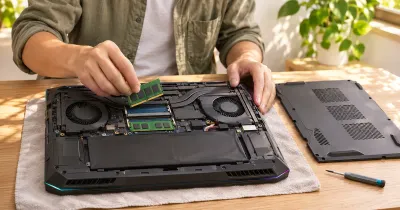
- Upgrade RAM if you have 8 GB or one stick. Moving to 16 GB in two sticks (dual channel) helps frame rates in many games. An SSD speeds up loading but rarely raises frame rates. See can you upgrade a gaming laptop.
Nvidia GPU Not Used FAQ
How do I make my gaming laptop faster for games?
Plug it in, choose the maker’s Performance or Turbo mode, set Windows’ power mode to Best performance, turn on Optimizations for windowed games, update the GPU driver, and lower ray tracing and shadows with DLSS on Quality or Balanced.
Does Windows Game Mode increase FPS?
Slightly at most. It mainly stops Windows Update and background tasks from interrupting the game. It’s on by default.
Why is my game using Intel or AMD graphics instead of Nvidia?
Windows or a power-saving mode assigned it to the integrated GPU. Set the game to High performance in Windows Graphics settings and make sure the GPU mode isn’t Eco or iGPU-only.
Why doesn’t my Nvidia GPU show up in Device Manager?
On ASUS laptops, Eco mode hides it. On others, the driver may be missing or the GPU disabled in BIOS or the maker’s app.
Is it bad that my laptop uses integrated graphics at the desktop?
No, that’s how hybrid graphics save battery. The Nvidia GPU should wake when a game starts.
Does Ultimate mode or dGPU-only mode hurt anything?
Only battery life; the Nvidia GPU stays on all the time. Switching modes needs a restart.
Why is “Run with graphics processor” missing from the right-click menu?
Nvidia removed it; per-app GPU selection now lives in Windows’ Graphics settings.
Sources
- ASUS: Armoury Crate introduction (GPU modes)
- ASUS ROG: maximize performance with the MUX switch
- Lenovo: GPU Mode in Legion Space
- Microsoft: change the power mode for your Windows PC
- Microsoft: tips to improve PC performance in Windows
- Microsoft: optimizations for windowed games in Windows 11 (Graphics settings)
- Nvidia: “Run with graphics processor” missing from context menu
- Nvidia Control Panel: Manage 3D Settings
- Lenovo Community: Legion Pro 7 Legion Space showing Nvidia Control Panel unavailable