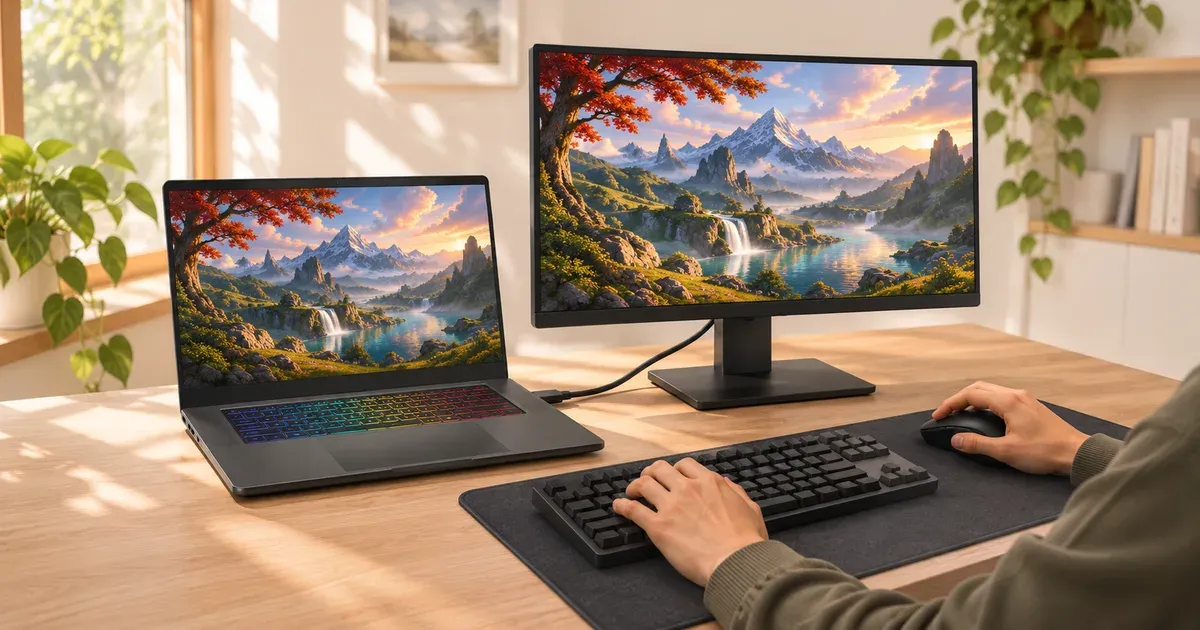
The short answer: plug the monitor into a port wired to the Nvidia GPU (usually the HDMI 2.1 port or a USB-C/Thunderbolt port marked with DisplayPort and G-SYNC), use a cable rated for the bandwidth, then pick the refresh rate in Windows’ Advanced display settings. Most “stuck at 60 Hz” problems come from one of three things: a port that runs through the integrated graphics, an old HDMI 2.0 cable or port, or Windows never being told to switch from its default.
Step by Step
- Find the right port. Look at your laptop’s spec page. ASUS, for example, lists the 2026 ROG Strix G16’s ports as HDMI 2.1 FRL and two Thunderbolt 5 ports “with support for DisplayPort / power delivery / G-SYNC.” G-SYNC needs the Nvidia GPU to drive the display, so ports listed with G-SYNC are the ones to use. On some configurations, a Thunderbolt 4 port without G-SYNC in its description runs through the integrated graphics.
- Use a cable rated for it. For HDMI 2.1 speeds, an Ultra High Speed HDMI cable. For USB-C to DisplayPort, a cable that supports the DisplayPort version your monitor needs.
- Set the refresh rate. Windows 11: Settings > System > Display > select the monitor > Advanced display > Choose a refresh rate. Advanced display also shows which GPU the monitor is connected to.
- Turn on G-SYNC. Nvidia Control Panel > Display > Set up G-SYNC, and enable it for the external monitor (and turn on Adaptive-Sync/FreeSync in the monitor’s own menu if needed).
- Choose how the screens work together. Press Windows+P and pick Second screen only to game on the monitor alone (the laptop panel turns off), or Extend to keep both.
- Check in a game. Set the game to fullscreen or borderless at the monitor’s resolution and refresh rate, and keep the laptop plugged in and in Performance or Turbo mode.
How Much Bandwidth You Need
| Connection | Max bandwidth | What it handles |
|---|---|---|
| HDMI 2.0 | 18 Gbps | 4K at 60 Hz; 1440p at about 144 Hz |
| HDMI 2.1 | up to 48 Gbps | 4K at 120 Hz and up; 1440p at 240 Hz |
| DisplayPort 1.4 (incl. over USB-C) | 32.4 Gbps | 1440p at 240 Hz; 4K at 144 Hz with DSC |
| DisplayPort 2.1 | up to 80 Gbps | 4K at 240 Hz |
Which Connection for Your Monitor
| Monitor | Connections that carry it |
|---|---|
| 1080p, 144–165 Hz | HDMI 2.0, DisplayPort 1.2 or newer, USB-C with DisplayPort Alt Mode |
| 1080p, 240 Hz | DisplayPort 1.4 (or USB-C DP), HDMI 2.1; many monitors cap HDMI 2.0 at 144 Hz |
| 1440p, 144–165 Hz | DisplayPort 1.4, HDMI 2.1; HDMI 2.0 reaches 144 Hz on many monitors |
| 1440p, 240 Hz | DisplayPort 1.4 (8-bit color, or 10-bit with DSC), HDMI 2.1 |
| 1440p, 360–500 Hz | DisplayPort 1.4 with DSC, DisplayPort 2.1, HDMI 2.1 with DSC |
| 4K, 120–144 Hz | HDMI 2.1, DisplayPort 1.4 with DSC |
| 4K, 240 Hz | DisplayPort 2.1 (UHBR20), or DisplayPort 1.4 / HDMI 2.1 with DSC |
Bandwidth also depends on color depth and whether the monitor and GPU support Display Stream Compression (DSC), so treat these as typical. If a 4K 144 Hz monitor tops out at 60 Hz on HDMI, the laptop’s or monitor’s port is likely HDMI 2.0 or the cable can’t carry 2.1 speeds.
Why a Monitor Gets Stuck at 60 Hz
| Symptom | Cause | Fix |
|---|---|---|
| 60 Hz is the only option | Wrong cable or HDMI 2.0 port | Ultra High Speed HDMI or DisplayPort/USB-C |
| Refresh rate options exist but games stutter | Port routed through integrated graphics | Move to the HDMI or G-SYNC-capable USB-C port |
| High refresh available, but Windows shows 60 Hz | Windows default | Set it in Advanced display |
| G-SYNC option missing | Monitor’s Adaptive-Sync off, or port on the iGPU | Enable it on the monitor; switch ports |
| Lower frame rates than expected | Laptop GPU limited by power mode | Plug in the charger; use Performance or Turbo mode |
USB-C Ports, Docks and Adapters
- The USB-C port has to carry video. It needs DisplayPort Alt Mode or Thunderbolt video. Spec pages and port icons say so (a DisplayPort “D” logo or a lightning bolt). A data-only USB-C port shows nothing.
- Connect directly when you can. Docks and hubs that split one port across two monitors (MST) divide the bandwidth, and USB docks that use DisplayLink compress video through software. Both can cap a high-refresh monitor or add lag.
- Use an active USB-C to HDMI 2.1 adapter only if it says HDMI 2.1 / 48 Gbps. Most cheap adapters are HDMI 2.0 and top out at 4K 60 Hz.
Playing With the Lid Closed
To use only the external monitor: Control Panel > Power Options > Choose what closing the lid does > set “When I close the lid” to Do nothing for “Plugged in.” Leave room around the keyboard area; many laptops vent heat near the hinge, and a closed lid on a hot laptop runs warmer.
Does the MUX Switch Matter for External Monitors?
The MUX switch (ASUS calls the dGPU-only mode Ultimate) changes how the laptop’s own screen is connected. A monitor on a port wired to the Nvidia GPU is already connected directly, so switching modes isn’t needed for it. More in what is a MUX switch.
If you’re shopping for the screen itself, see our best gaming monitors.
External Monitor FAQ
Which port on my gaming laptop is connected to the GPU?
It depends on the model. Check the spec page or user guide: ports listed with G-SYNC support, and the HDMI port on most gaming laptops, are wired to the Nvidia GPU. Windows’ Advanced display page shows which GPU drives each monitor.
Can a gaming laptop run a 240 Hz monitor?
Yes, over HDMI 2.1 or DisplayPort/USB-C with enough bandwidth. Whether games reach 240 fps depends on the GPU and the game.
Why is my external monitor capped at 60 Hz?
Usually an HDMI 2.0 port or cable, a port routed through the integrated graphics, or Windows still set to 60 Hz.
Does an external monitor lower gaming laptop performance?
Not on a port wired to the Nvidia GPU. On a port routed through the integrated graphics, frames take an extra hop, which can cost performance.
Can I connect a gaming laptop to a monitor through a USB-C dock?
Yes, but a dock that drives two monitors from one port, or one that uses DisplayLink, can limit the refresh rate. For one high-refresh monitor, a direct USB-C to DisplayPort cable is more reliable.
Do I need a special HDMI cable for 144 Hz?
For 1080p or 1440p at 144 Hz, a Premium High Speed (HDMI 2.0) cable is enough. For 4K at 120 Hz or more, use a certified Ultra High Speed HDMI cable.
Is HDMI or USB-C better for a gaming monitor?
Either works if the port is wired to the Nvidia GPU and has enough bandwidth. HDMI 2.1 is simplest for TVs; USB-C to DisplayPort is common for PC monitors.
Sources
- ASUS ROG Strix G16 (2026) specifications (I/O ports)
- Microsoft: change the refresh rate on your monitor in Windows
- VESA: DisplayPort FAQ
- VESA: DisplayPort over USB-C
- Dell: video cables and their capabilities
- HDMI Forum: HDMI 2.1 specification
- VESA: DisplayPort 2.1
- ASUS ROG: maximize performance with the MUX switch
- ASUS: troubleshooting external display connection issues