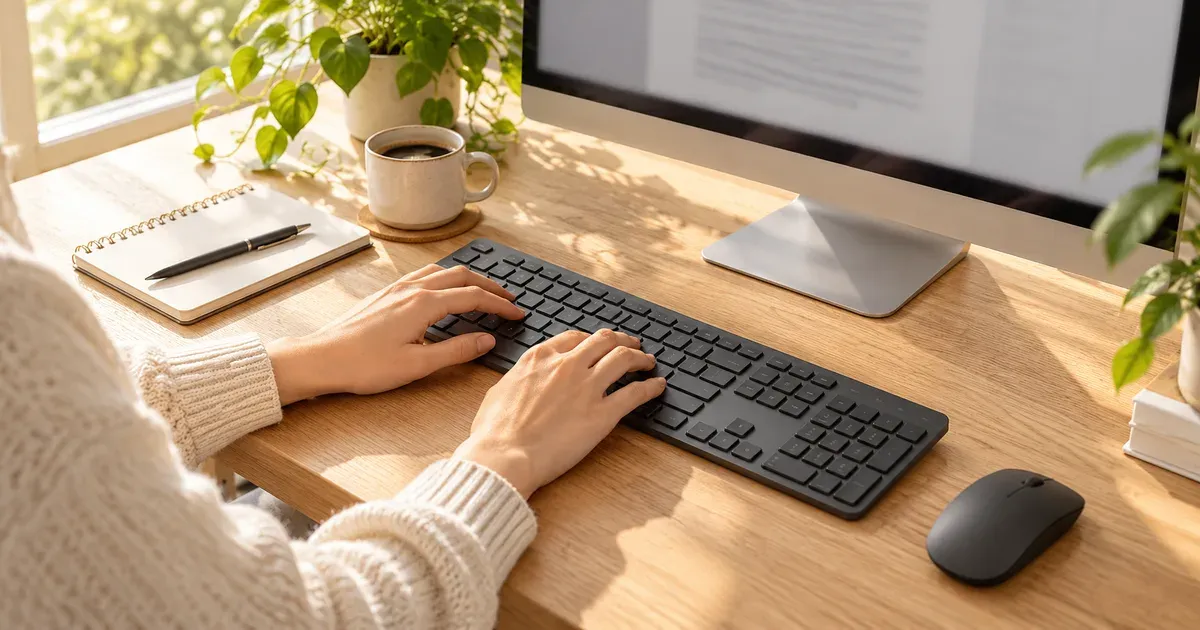
If you type for a living, or just answer a lot of email, your keyboard is the tool you touch most. The best keyboard for typing isn’t the flashiest or the loudest. It’s one where your fingers land on the right keys without looking, each press registers cleanly without bottoming out hard, it’s quiet enough for an open office or a call, and your wrists still feel fine at five o’clock.
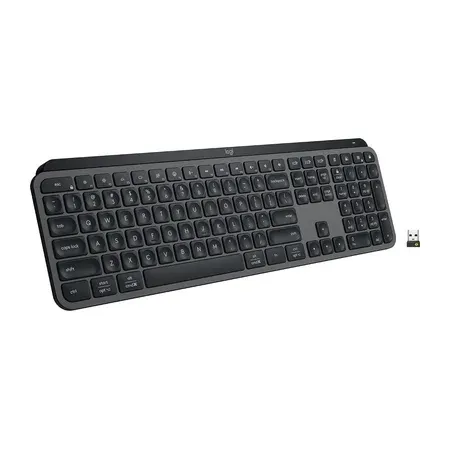
Our top pick is the Logitech MX Keys S ($119.99). Its low-profile keys have a shallow dish shaped for your fingertips, which makes typing fast, accurate, and quiet, like a very good laptop keyboard. It connects to three devices, lights up when your hands approach, and runs for days per charge. If you prefer the feel of a mechanical keyboard, the Logitech MX Mechanical has quiet tactile switches in a low, office-friendly design. For comfort, the Logitech Wave Keys ($69.99) curves the keys into a gentle wave with a cushioned palm rest, and the Kinesis Freestyle2 splits into two halves.
Our Picks at a Glance
| Keyboard | Best for | Key type | Connection | Price |
|---|---|---|---|---|
| Logitech MX Keys S | Most typists | Low-profile scissor | Bluetooth, Logi Bolt | $119.99 |
| Logitech MX Mechanical | Mechanical feel, quietly | Low-profile mechanical | Bluetooth, Logi Bolt | $149.99 |
| Logitech Wave Keys | Wrist comfort on a budget | Membrane, wave layout | Bluetooth, Logi Bolt | $69.99 |
| Kinesis Freestyle2 | Wide shoulders, wrist strain | Split, low-force membrane | Wired USB | About $94 |
Best Overall: Logitech MX Keys S
Best overall
Logitech MX Keys S
A low-profile wireless keyboard with dished keys, smart backlighting, and three-device switching.
The Logitech MX Keys S is the keyboard we’d put on most office desks. Its keys are low and stable, like a premium laptop’s, but each one has a spherical dish in the top that centers your fingertip, which helps accuracy when you’re typing fast without looking. The key travel is short and consistent, so typing feels quick and quiet, and the solid frame doesn’t flex.
The backlight turns on as your hands approach and adjusts to the room’s brightness. It connects over Bluetooth or Logitech’s Logi Bolt USB receiver, pairs with three devices that you switch between with a key, and works with Windows, macOS, Linux, and ChromeOS, with key labels for both Windows and Mac. A USB-C charge lasts about 10 days with the backlight on, or about five months with it off. In Logitech’s Options+ app, you can set up shortcut keys and automations.
It’s a full-size keyboard with a number pad; the MX Keys Mini drops the number pad for a smaller footprint. It has more than 3,800 Amazon ratings averaging 4.4 stars.
Buy it if you want a quiet, accurate, comfortable keyboard for long days of writing.
Best Mechanical: Logitech MX Mechanical
Best mechanical
Logitech MX Mechanical (Tactile Quiet)
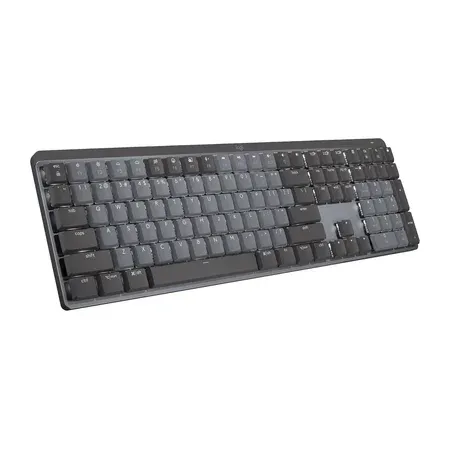
A full-size, low-profile mechanical keyboard with quiet tactile switches, backlighting, and multi-device pairing.
Many writers prefer mechanical switches: each key has its own spring and a defined actuation point, so you can feel exactly when a press registers. The MX Mechanical brings that to the office without the clatter. Its Tactile Quiet switches have a small bump at the actuation point, so you don’t need to press all the way down, and they’re quieter than most mechanical keyboards. Linear and Clicky versions are available too.
The switches and keycaps are low profile, so your wrists sit lower than on a standard mechanical keyboard, which is more comfortable without a wrist rest. It shares the MX Keys S’s conveniences: smart backlighting, three-device switching over Bluetooth or Logi Bolt, and the Options+ app. A charge lasts up to 15 days with backlighting, or about 10 months without.
It’s heavier and pricier than the MX Keys S, and it’s still louder than a scissor-switch keyboard. If you want a traditional, taller mechanical keyboard with more customization, see our guide to the best mechanical keyboards.
Buy it if you love the feel of mechanical switches but share a room or take calls.
Best Ergonomic: Logitech Wave Keys
Best ergonomic
Logitech Wave Keys
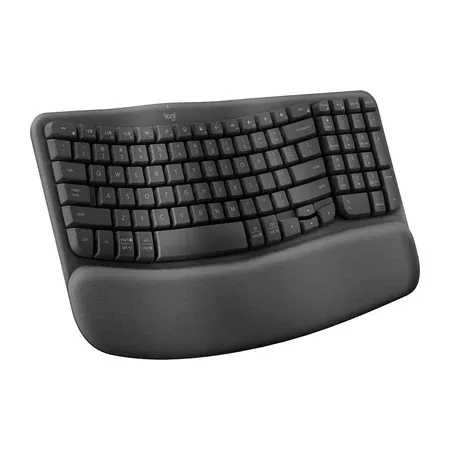
A curved-wave ergonomic keyboard with a memory-foam palm rest and up to three years of battery life.
The Logitech Wave Keys is the easiest way into an ergonomic keyboard. The keys follow a gentle wave that rises in the middle and curves around your hands, angling your wrists into a more natural position, without a split or a steep learning curve. A built-in memory-foam palm rest supports your hands between bursts of typing.
It’s a compact layout with a number pad, connects over Bluetooth or a Logi Bolt receiver to three devices, and runs on replaceable batteries for up to three years. It has more than 3,000 Amazon ratings averaging 4.2 stars, for about $70.
The keys are softer and mushier than the MX Keys S, and the shape takes a few days to get used to. The palm rest isn’t removable.
Buy it if your wrists ache after typing and you want a comfortable keyboard without relearning to type.
Best Split Keyboard: Kinesis Freestyle2
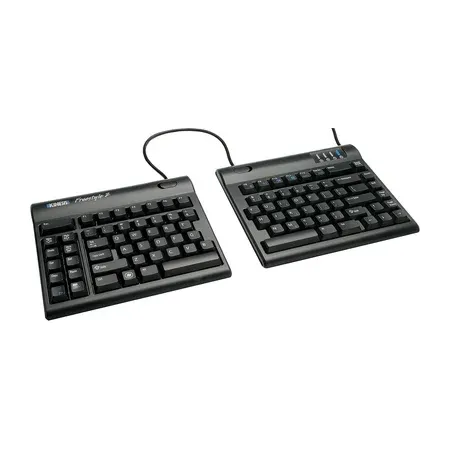
Best split keyboard
Kinesis Freestyle2 for PC
A two-piece split keyboard that separates up to 9 inches, with low-force keys and optional tenting lifters.
A split keyboard lets each hand type straight ahead from its own shoulder, instead of bending your wrists outward to meet in the middle. The Kinesis Freestyle2 splits into two halves that you can separate by up to 9 inches and angle independently, connected by a tether. It keeps a standard layout, so you don’t have to learn new key positions, just to keep your hands on their own side.
Its low-force keys need little pressure and have a soft tactile feel, which reduces finger fatigue. Kinesis sells VIP3 lifters that tent the inner edges up, so your palms tilt toward each other like they do at rest; many bundles include them. It’s wired USB, with a Mac version available.
It has no number pad on the main units, the keys are membrane rather than mechanical, and splitting the keyboard takes a week or two to get used to if you’ve been using the wrong hand for a few keys.
Buy it if you have wide shoulders, wrist or forearm discomfort, or want the most adjustable typing position.
Low-Profile, Mechanical, or Ergonomic?
| Low-profile (scissor) | Mechanical | Ergonomic (wave or split) | |
|---|---|---|---|
| Feel | Short, quick, laptop-like | Deeper travel, defined bump or click | Varies |
| Noise | Quietest | Louder, depends on switch | Quiet to moderate |
| Wrist height | Low, often no rest needed | Taller, wrist rest helps | Usually includes a rest |
| Learning curve | None | None | A few days to two weeks |
| Best for | Fast, quiet typing | Typists who like feedback | Wrist or shoulder discomfort |
Switch types on mechanical keyboards: linear switches are smooth top to bottom; tactile switches have a bump you feel at actuation, which many typists like; clicky switches add an audible click, which is satisfying but loud for shared spaces.
Set Up Your Keyboard for Comfort
- Keep your elbows at about 90 degrees and your wrists straight, not bent up or down. Your keyboard should sit at about elbow height; our desk height calculator helps.
- Leave the back legs folded if they make your wrists bend upward. A flat or slightly negative tilt is often more comfortable.
- Rest your palms between bursts, not while you type. Floating your hands over the keys reduces pressure on your wrists.
- Consider a compact layout. A keyboard without a number pad lets your mouse sit closer, so your right arm doesn’t reach as far.
- Pair it with a good mouse. See our guide to the best vertical mouse if your forearm or wrist aches.
If you have ongoing pain, numbness, or tingling in your hands or wrists, see a doctor or occupational therapist rather than relying on a keyboard to fix it.
What About Mac Users?
The MX Keys S and MX Mechanical both come with Mac key labels and work well with macOS, and Logitech sells MX Keys S for Mac and MX Mechanical Mini for Mac versions. Apple’s own Magic Keyboard with Touch ID ($149) is thin and quiet, and its fingerprint reader unlocks your Mac and approves payments, but it has no backlight and no quick switching between devices.
How We Chose
We compared popular keyboards on typing feel and accuracy, noise, wrist height and ergonomics, layout, connectivity and multi-device support, battery life, build quality, owner ratings, and price. We favored keyboards that are comfortable for long writing sessions over gaming features like RGB lighting and high polling rates.
Keyboards for Typing FAQ
What is the best keyboard for typing?
The Logitech MX Keys S for most people. Its dished, low-profile keys are fast, accurate, and quiet. If you prefer mechanical switches, the Logitech MX Mechanical is the quietest good option.
Are mechanical keyboards better for typing?
Not necessarily. Many typists love their defined feel and feedback, but low-profile keyboards are just as fast and quieter. Try both if you can.
What keyboard switch is best for typing?
Tactile switches are popular for typing because you feel the bump when a key registers, so you don’t need to press all the way down. Linear switches are smoother; clicky switches are loud.
Are ergonomic keyboards worth it?
For many people, yes, especially if your wrists or shoulders get sore. Wave and split keyboards keep your wrists straighter. They take a few days to two weeks to get used to.
Is a low-profile keyboard better for your wrists?
It can be, because your wrists don’t have to bend upward as much. With a taller keyboard, a wrist rest helps.
Should I get a keyboard with a number pad?
Only if you enter a lot of numbers. A compact keyboard lets your mouse sit closer, which is easier on your shoulder.